
FotoFinish Setup Guide

Everything you need to go from a new account to your first photo report. Follow the five steps below to get your first site running in under 30 minutes.

Step by Step

From New Account to First Photo Report

Follow the steps in order: each one builds on the one before.

  1. Create Your Account

    Start your 10-day free trial, or log in if your organization already has a FotoFinish account.

    • Start your free trial and create your account.
    • Check your email and set your password.
    • Log in to your dashboard at app.fotofinish.com.
  2. Add Your Sites

    Every location you want to monitor is a site in FotoFinish. Add your sites first: your users and your FotoFlows are both assigned to sites.

    • In your dashboard, go to Sites and add a new site.
    • Enter the site name and address.
    • Repeat for each location you want to monitor.
  3. Invite Your Team

    Add the people who will use FotoFinish and assign each one to their sites. There is no limit on the number of users in any plan.

    • Go to Users and add each person with their name, email, and role.
    • Assign each person to their sites.
    • Make sure every site has at least one on-site user: the person who takes and submits photos from the app.
    • Each new user receives an email invitation with instructions to download the app.

    Why your team comes before your first FotoFlow: a FotoFlow can only be created for a site that has at least one on-site user.

  4. Build Your First FotoFlow

    A FotoFlow defines which photos your team takes at a site. It is made of slots, one for each area, and each slot holds a set of reference photos. Every shift, the app randomly picks one reference photo from each slot for your team to replicate.

    • Create a new FotoFlow and select its site. The site needs at least one on-site user assigned.
    • Add a slot for each area of the site, such as restrooms, kitchen, or lobby, and name each slot after its area.
    • Upload 2-5 reference photos per slot, taken from different angles.
    • Drag and drop the slots into the order your team will follow at the site.
    • Save and activate the FotoFlow. Your team is ready to go.

    A slot with only one reference photo shows that same photo every shift. Add more photos so that what your team is asked to capture changes from shift to shift. For tips on taking them, see the Best Practices Guide.
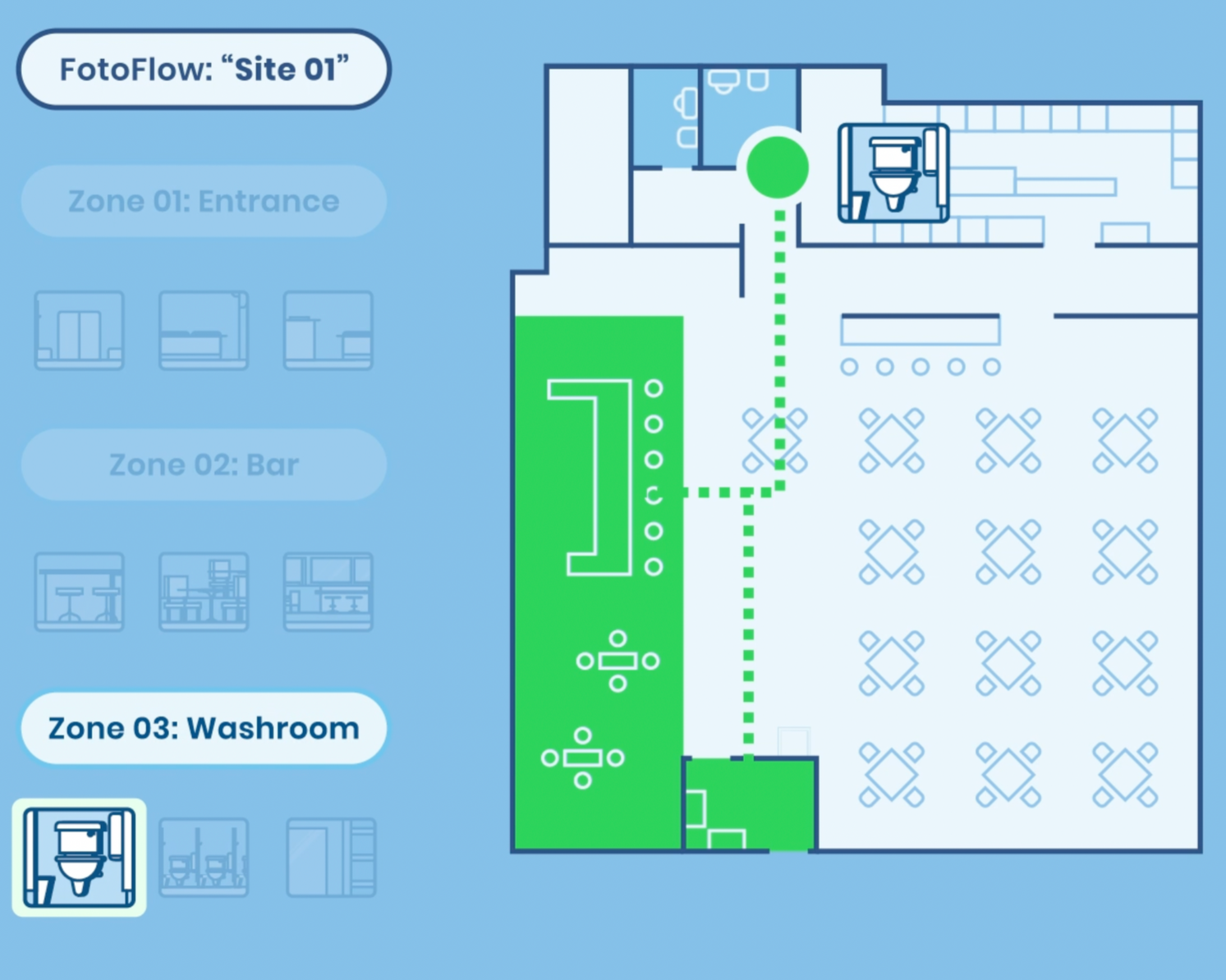
    Illustration of a FotoFlow named Site 01 with three zones (entrance, bar, and washroom), each holding its own reference photos, shown on the floor plan of the site
  5. Receive Your First Report

    Have an on-site user submit their first report, then review it in your dashboard.
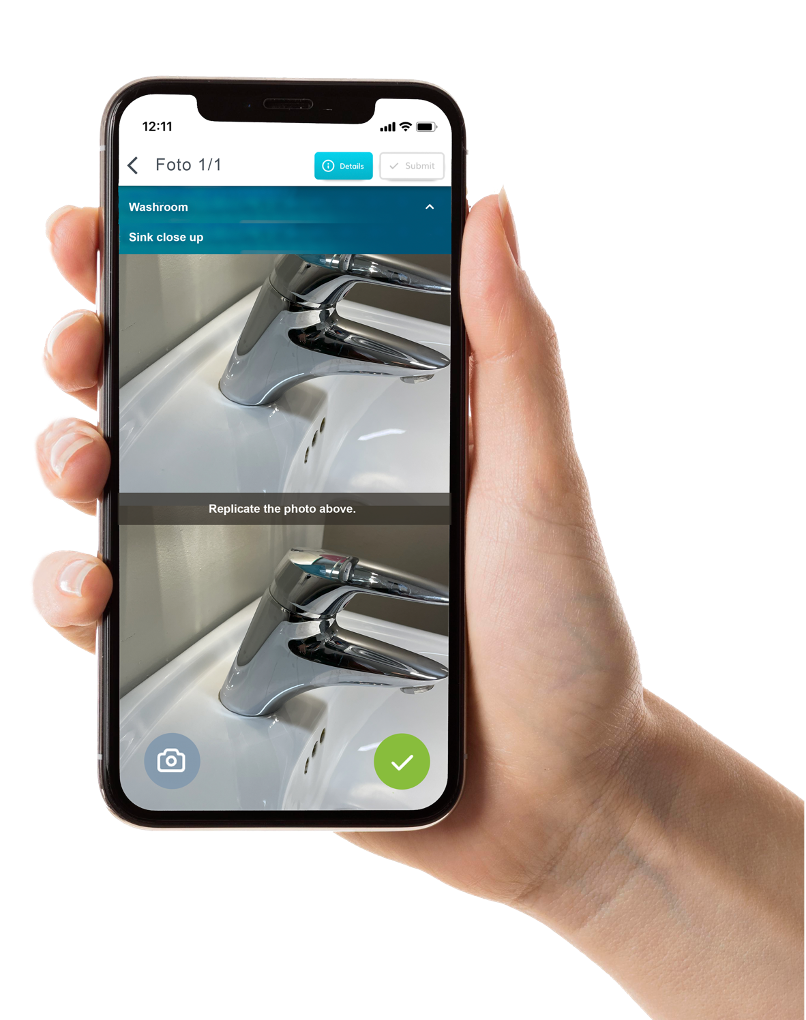
    • Your on-site user downloads the free FotoFinish app from the App Store or Google Play and logs in.
    • For each slot, the app shows them a reference photo so that, after cleaning, they can take a matching photo from the same angle.
    • When they are done, they tap "Finish" and the report is sent.
    • The report reaches your dashboard as soon as it is submitted. Find it in History of Reports.
    Hand holding a phone with the FotoFinish app asking the user to replicate a reference photo of a washroom sink
Keep Learning

More Resources

Pick up where this guide leaves off.

Best Practices Guide

Tips for building FotoFlows, taking reference photos your team can match, and getting more from your results.

Read the Best Practices Guide

Admin Training

A module-by-module walkthrough of sites, FotoFlows, users, and results, with the full setup video.

Admin Training

Help Center

Articles on getting started, features, and taking photos.

Visit the Help Center

Ready to Set Up Your Account?

Access your dashboard and start building your first FotoFlow today.